For anyone using DAWs like Cubase for music production, WAVES plugins are likely indispensable tools.
However, you might one day face a “recognition failure” where WAVES plugins that were working perfectly suddenly stop responding in your DAW or disappear completely.
In this article, I will explain in detail how to deal with this perplexing trouble, ranging from basic checks to advanced troubleshooting methods.
Accurately Identifying the Symptoms
The first step in solving the problem is to accurately understand what symptoms are occurring.
Plugins Unresponsive (GUI Does Not Appear)
Although the WAVES plugin name is displayed in the DAW’s insert slot, clicking it does not bring up the GUI (Graphical User Interface), and the plugin fails to load.
Disappearance from Projects
When opening a project file that used WAVES plugins, the plugins in question have completely vanished from the insert slots.
Blocked by the DAW (Blacklisted)
DAWs like Cubase and Studio One have a feature that automatically registers plugins causing unstable behavior or crashes to a “Blocklist” (or Blacklist) during the startup scan to maintain system stability.
If the DAW blocks WAVES plugins for some reason, access to those plugins is completely cut off.
In the case of Cubase, there is a function to manually allow (reactivate) them, but depending on the nature of the trouble, you may find yourself in a loop where they are blocked again every time you launch the DAW.
◇
A characteristic of these symptoms is that they typically occur across the entire DAW environment (all project files), rather than being dependent on a specific project file.
Basic Troubleshooting Steps
Instead of immediately tampering with the depths of your PC system, let’s proceed step-by-step with simple, low-impact measures.
Step 1: Checking DAW Settings and Re-scanning
Unlike general plugins, WAVES plugins have a unique structure where they are recognized by the DAW via a single component file called “WaveShell”. First, ensure that your DAW is correctly recognizing this WaveShell.
※ Strictly speaking, the filenames are like “WaveShell1-VST3 16.0_x64.vst3” for VST3, and “WaveShell1-VST 14.12_x64.dll” for VST2.
Checking Plugin Paths
Check if your DAW has correctly designated the WaveShell file as a scan target.
Usually, “C:Program FilesCommon FilesVST3” is set as the standard, and the DAW should load the WaveShell file within that folder.
If you are using VST2, the files are located in general VST folders such as “C¥ProgramFiles¥VSTPlugIns”, “C¥ProgramFiles¥Steinberg¥VSTPlugins”, or “C:Program Files (x86)VstPlugins”, so please verify that these paths are specified.
Clearing the Blocklist
Open your DAW’s “Plugin Manager” or equivalent and check if WAVES plugins are registered in the Blocklist. If they are, manually remove them from the list and force a re-scan.
Step 2: Using the Repair Function in Waves Central
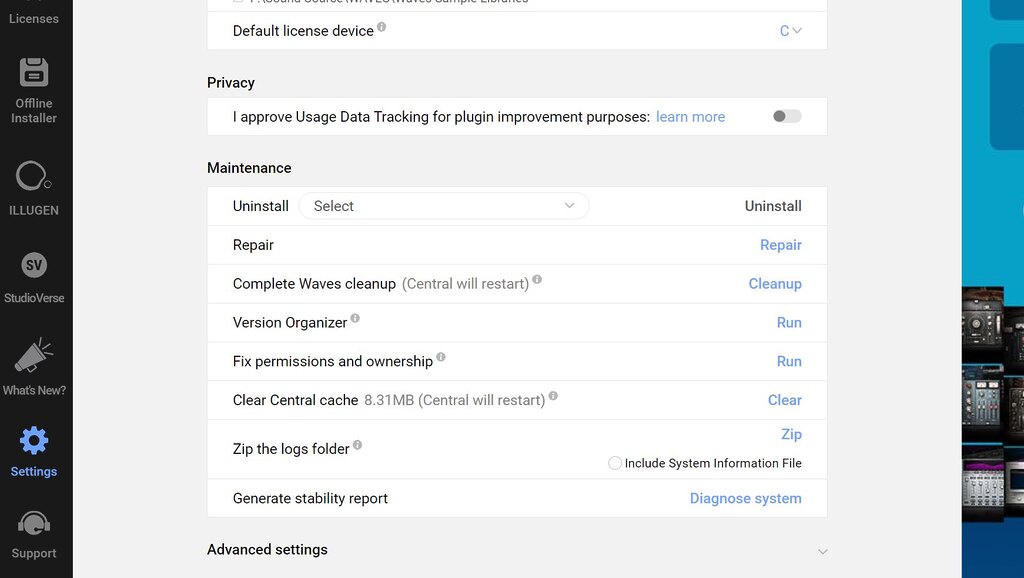
“Waves Central”, the management tool for WAVES plugins, has a built-in repair function for problem-solving.
- Launch Waves Central and go to the “Settings” menu.
- Run utilities like “Clean up”, “Version Organizer”, and “Fix Permissions” one by one.
- At this stage, check if the problem is resolved in your DAW.
- If it is not resolved, finally execute “Repair” to attempt an integrity check and repair of installed plugin files.
Repairing Windows System Components
If the symptoms do not improve even after trying the basic measures above, the cause may lie in the Windows system components that WAVES software depends on.
When DAWs like Cubase load (initialize) a plugin, they access system components called “Runtime files” used by the plugin. Many applications like WAVES plugins rely on basic Windows components such as the “Microsoft Visual C++ Redistributable” for their core functions.
If these runtime files are corrupted or have some inconsistency, the plugin initialization process will crash.
The DAW then detects this anomaly, determines that “this plugin is unstable,” and registers it on the Blocklist to prevent it from loading again—this is the likely scenario.
Solution: Repairing Microsoft Visual C++ Redistributable
For troubles at this stage, the most reliable solution, confirmed effective in many cases, is to repair these corrupted system components (this method is also announced by WAVES official support).
- Open Windows “Settings” and select “Apps”.
- Find “Microsoft Visual C++ 2012 Redistributable” in the list of installed programs, click it, and select “Modify”.
- Click “Repair” in the dialog that appears to execute it.
- Starting from “2012”, repeat the repair process for all subsequent versions listed (e.g., 2013, 2015-2022, etc.) in order.
[Important] It is okay if errors occur
For example, an installation error saying “Setup Failed” may appear during the repair of “Microsoft Visual C++ 2015-2022 Redistributable”, but this is a known behavior and is not a problem. Close the error dialog and continue with the repair work for the next version.
Restart PC after repairing all relevant versions
After executing this procedure, restart your PC and launch your DAW. If the WAVES plugins are scanned normally and restored to a usable state, you are done.
This method is one of those recommended by WAVES official support, and there are many reports of actual solutions in various forums, proving its effectiveness.
Re-installing WAVES Plugins (Last Resort)
If the problem still persists, you will finally need to choose the option of re-installation (Clean Install).
Since re-installing WAVES plugins literally initializes all related data, please make sure to back up various settings and take thorough measures before proceeding.
There is an item to execute uninstallation in the “Settings” menu of Waves Central, where you can uninstall by version unit.
However, a simple re-installation might not improve the situation. In that case, you may need to try a “Clean Install”, which also deletes user data (appdata) and program data (programdata).
Be Aware: The Issue May Be Windows, Not the DAW
As of 2025, the official management app “Waves Central” is equipped with various repair functions, so the first thing to do is not to panic and try those functions.
The problem of WAVES plugin recognition failure looks like a defect specific to the plugin or DAW on the surface. However, the tricky part is that one of the root causes can be inconsistencies in the system components (runtime files) that support the foundation of Windows.
In that case, performing repairs on the prescribed “Microsoft Visual C++ Redistributable” often solves the problem.
I hope this content helps you solve your trouble.