Cinematic Studio Strings (hereafter “CSS”) is a strings library favored by many users for its beautiful legato.
However, due to its unique latency (delay) in pronunciation, it has often been considered difficult to master or even avoided by some who find its potential hard to unlock.
With the refreshed Expression Map functionality in Cubase 15, the long-awaited “Delay Compensation Parameter” has finally been implemented. This makes MIDI editing for CSS significantly more manageable.
In this article, I am releasing the “CSS Expression Map” created specifically for Cubase 15 and explaining how to use it.
How to Download and Set Up the CSS Expression Map
For those who have previously operated CSS using keyswitches and are unfamiliar with Expression Maps, here is the workflow from loading the map to assigning it to a track.
Downloading the File
First, download the zip archive of the Expression Map from the URL below, extract it, and load it through the Cubase Expression Map Setup window.
Link CSS Expression Map (Cubase 15) Zip Archive
If you already use Expression Maps and are familiar with the process, feel free to skip the following instructions and proceed to How to Use the CSS Expression Map.
Opening the Setup Window
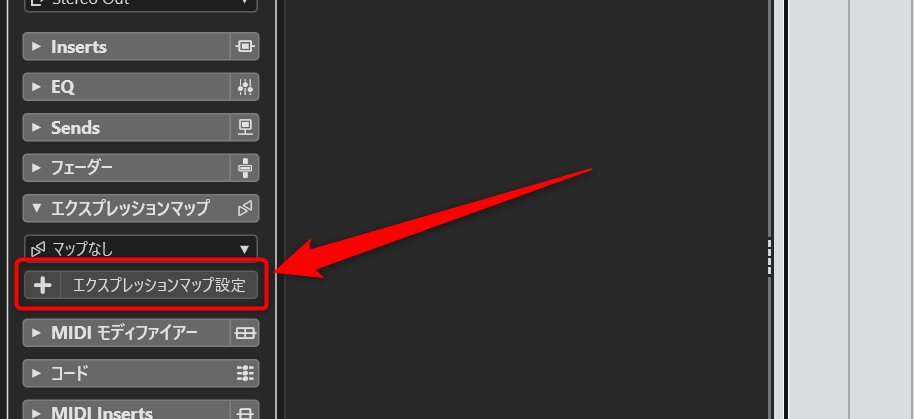
Next, click on “Expression Map Setup” in the “Expression Map” section of the Cubase Inspector to open the settings window.
Loading the Expression Map File
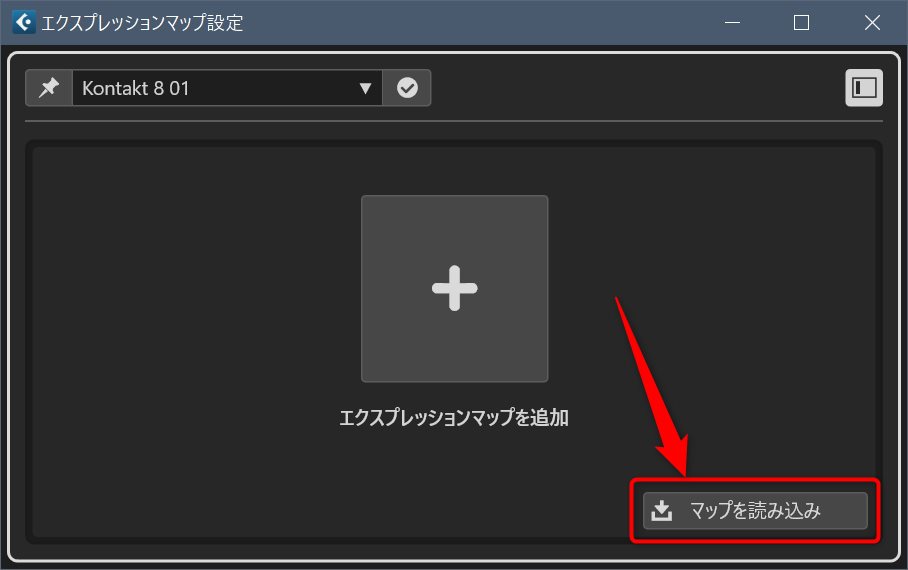
Click “Load Map” at the bottom right of the Expression Map Setup window and select the downloaded Expression Map file.
Assigning to an Instrument Track (MIDI Track)
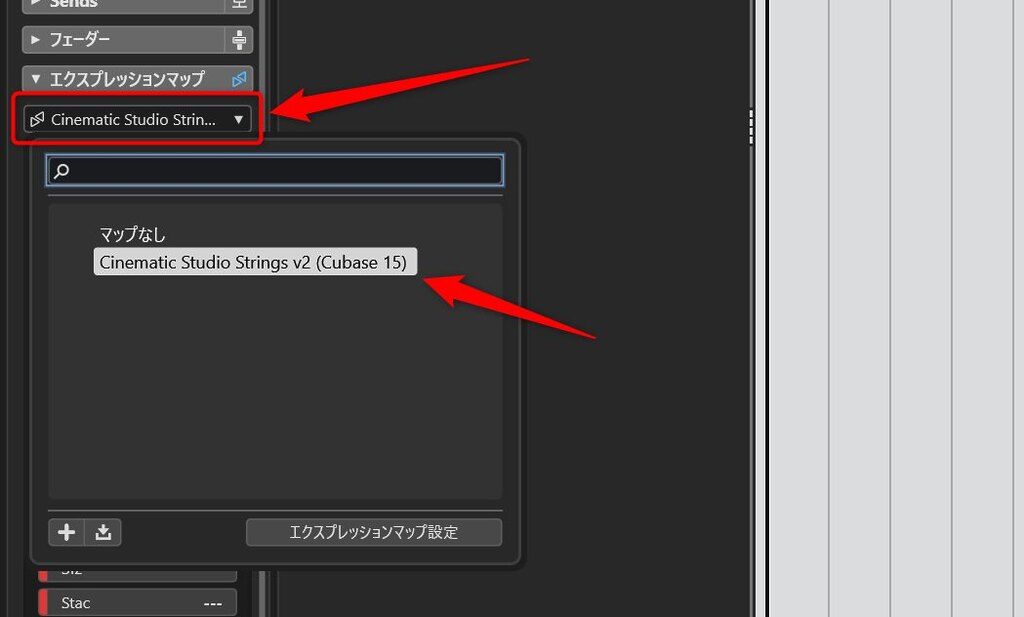
Create a new instrument track with Kontakt loaded, and in the “Expression Map” section of the Inspector, select the map you just loaded.
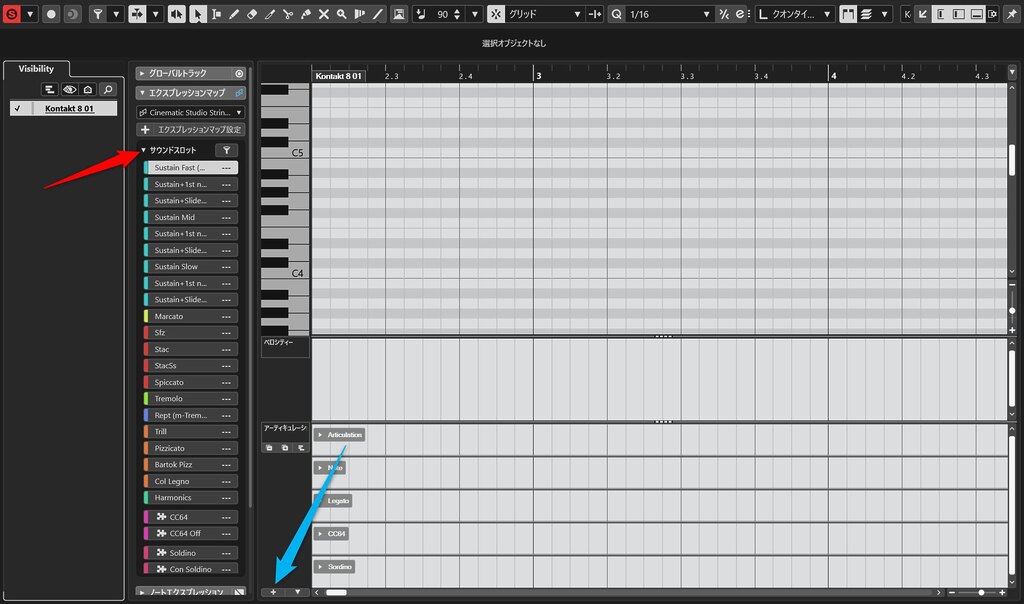
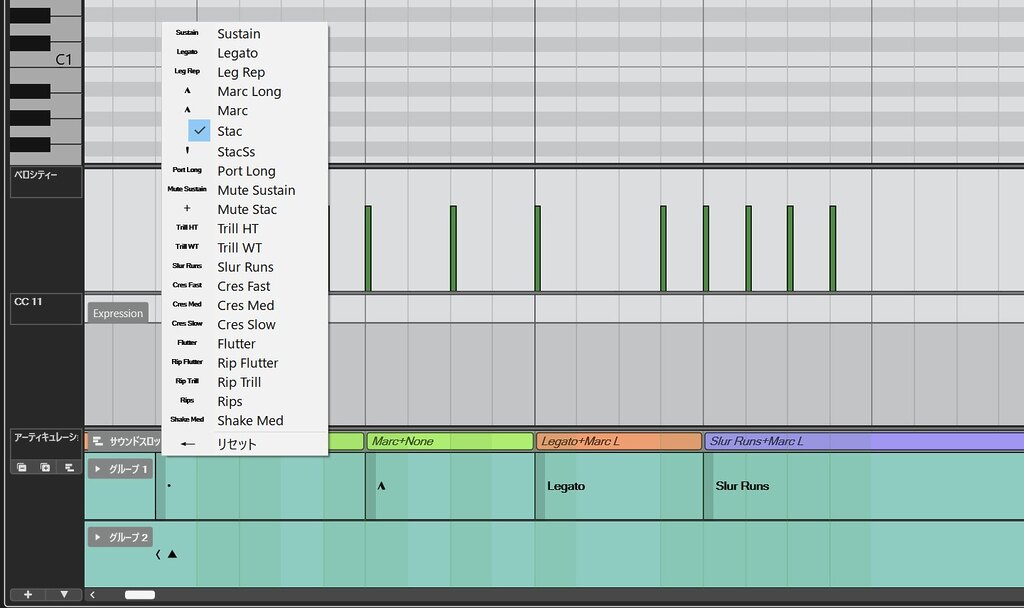
Once your Key Editor looks like the image above, you are ready to go.
If the Articulations are not visible in the controller lane, click the “+” button (indicated by the blue arrow) and select “Articulations” to display them.
Additionally, clicking “Sound Slots” (indicated by the red arrow) will show all configured sound slots, allowing you to monitor the current articulation status and its changes.
Basic Usage of the CSS Expression Map
The basic usage is as follows:
- Group 1 “Articulations”: Select the playing technique or legato speed.
- Group 2 “Legato”: Select whether to perform with legato enabled.
- Group 3 “Note”: Designate the “1st note” of a legato phrase or “Slide (Portamento)” (not required for non-sustain techniques like Marcato).
- Group 4 “CC64”: Manages Sustain Pedal data for auxiliary legato control.
- Group 5 “Sordino”: Toggles Con Sordino (mute) on or off.
Aside from legato performance, there are no specific precautions; it should function as intended with any articulation command.
Below is a detailed explanation of legato techniques and important considerations.
The Role of the “Note” Group in Legato
The “1st note” in the third group is an articulation dedicated exclusively to the first note of a legato phrase.
By assigning a specific attribute to the first note and fixing the delay compensation to the base value of 60ms, the initial note will trigger at the intended Note-On timing.
Without this setting, the first note would trigger 150–333ms early, just like the subsequent legato notes.
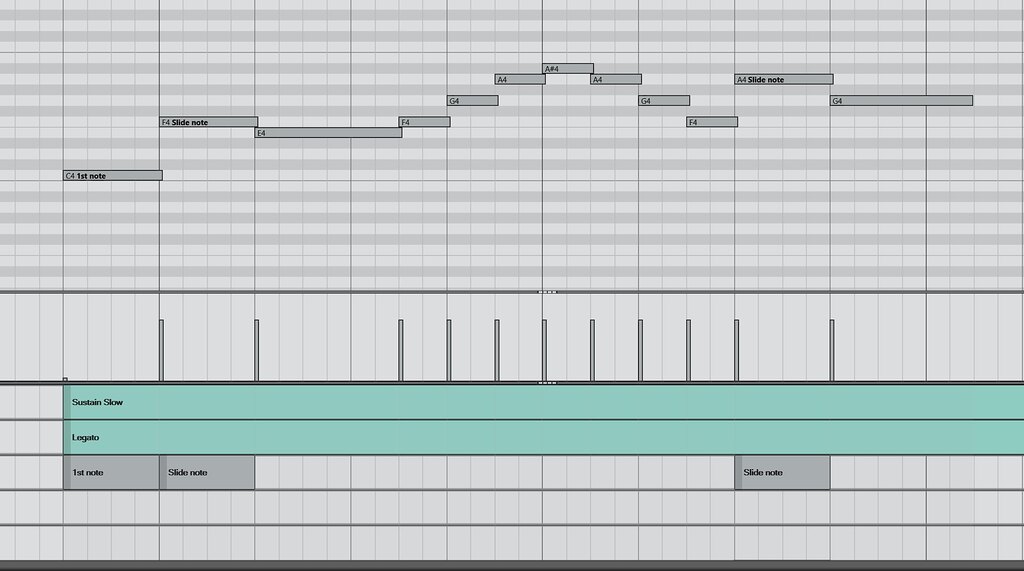
The image above shows a performance using Slow Legato. At the beginning of the phrase, “Sustain Slow” is selected in Group 1, and “Legato” is specified in Group 2.
The “1st note” command is applied to the first note, setting the delay compensation to 60ms regardless of the overall legato speed.
The second-to-last note in the phrase is assigned a “Slide note” command. Here, the delay compensation is set to 333ms regardless of the current legato speed, and the velocity is limited (forced) to a range of 1–19. This results in a slide (portamento) performance.
Crucially, the attack timing of all notes remains aligned to the grid, ensuring musical visual clarity.
[Caution 1] Note-Off Timing for the Last Note of a Phrase
Delay compensation in Cubase 15 shifts the entire note early while maintaining the note length. This means not only the Note-On but also the Note-Off timing shifts earlier by the same amount.
Consequently, the last note of a phrase will stop sounding earlier than intended.
For example, in the case of Slow Legato, the sound will cut off 333ms too early.
A simple fix is to manually edit the Note-Off timing for the final note, but this creates a discrepancy between the visual note end on the grid and the actual sound.
As an alternative, I will explain how to handle Note-Offs using the Sustain Pedal (CC64).
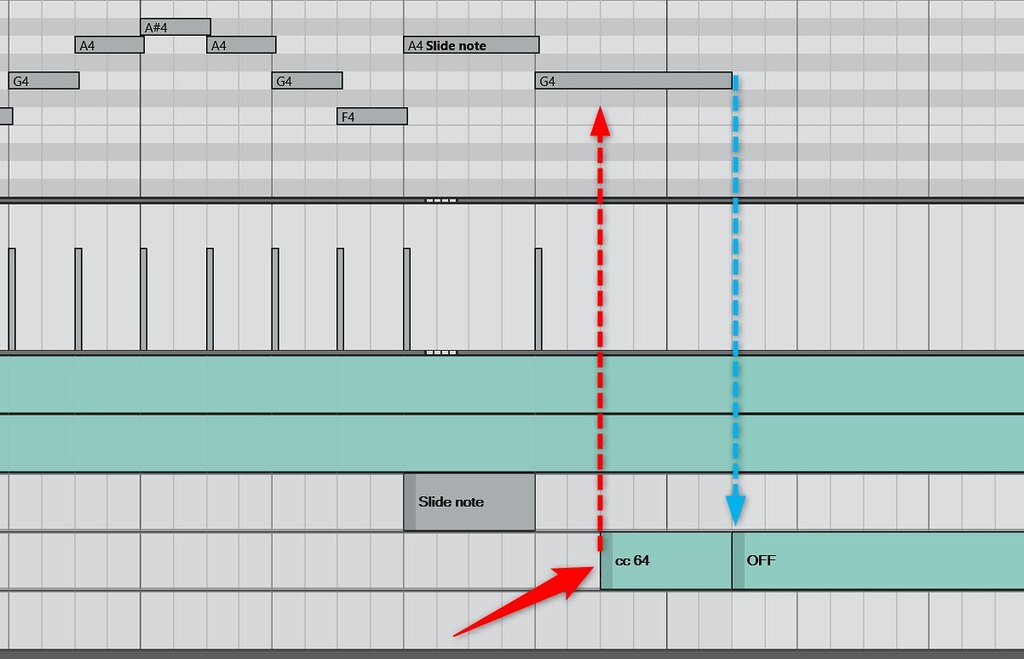
As shown in the image above, while the last note is sounding, input the “cc 64” command in Group 4 (red arrow) and input “OFF” at the desired Note-Off timing (blue arrow).
This ensures the performance matches the note information on the grid.
[Caution 2] Changing Legato Speed Within a Phrase
It is possible to change the legato speed within a single phrase. For example, you can switch to Slow Legato or insert a Slide Note in the middle of a Fast Legato phrase. However, there is a caveat.
Similar to Caution 1, because the delay compensation maintains the note length, changing the legato speed mid-phrase may cause the legato transition (the sound during pitch shift) to cut off at an unintended time.
The solution is the same as Caution 1: use the Sustain Pedal (CC64).
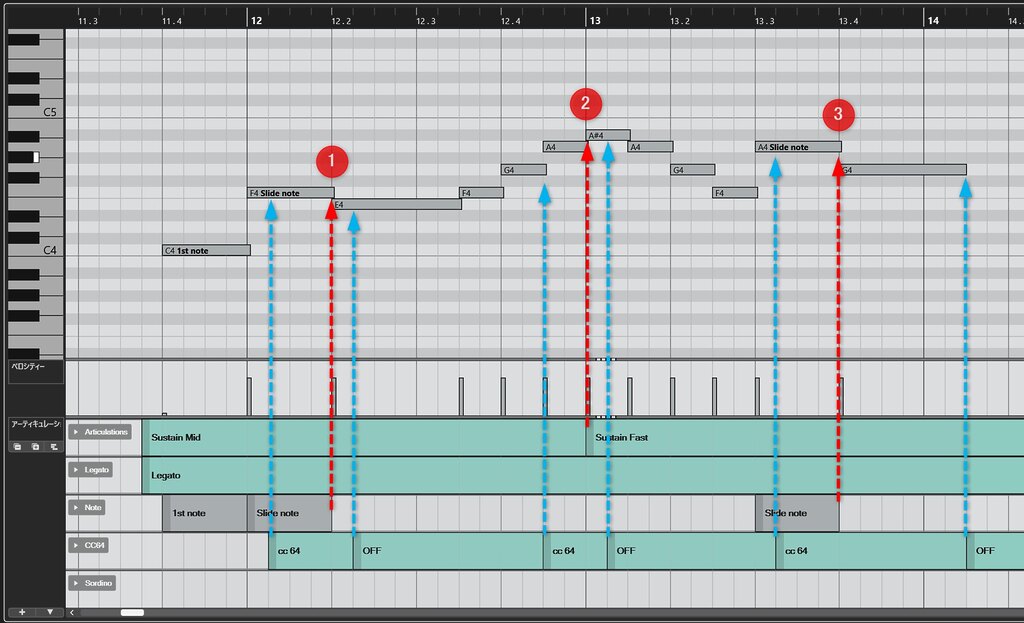
Let’s look at this in detail using the image above.
The phrase is the same as before, but it starts with Medium Legato and switches to Fast Legato at the note indicated by the red arrow labeled “2”.
Case “1”
The second note from the start has a “Slide note” command, and due to delay compensation, this note alone is played 333ms early. The following Medium Legato note is played 250ms early.
This means the “Slide note” will Note-Off before the next Medium Legato note triggers, causing the legato transition to break.
To prevent this, use “cc 64” to ensure the legato state is maintained. The timing for the “cc 64” command should “sandwich” the point where the notes switch.
As seen by the blue arrows in the image, “cc 64” and “OFF” are placed to bridge the Note-Off timing of the Slide note. This maintains the legato transition even if a gap occurs between notes due to the difference in delay compensation.
Case “2”
(Same image referenced again)
The note at the red arrow labeled “2” switches to Fast Legato. Since the previous notes were Medium Legato, a difference in delay compensation occurs (250ms vs. 150ms, a 100ms difference).
Just like in Case 1, since the subsequent note has less delay compensation, a gap will naturally occur where the transition might break. Again, place “cc 64” and “OFF” to bridge this switch and maintain the transition.
Case “3”
Case 3 is essentially the same as Case 1, but since it involves the final note of the phrase, the “OFF” command is placed to match the end of the phrase. The logic remains identical: use the Sustain Pedal to bridge any timing gaps caused by differing delay values.
Supplementary Note 1
In short, “legato maintenance measures” (or manually extending Note-Off timings) are required when switching from a slower legato speed (larger delay) to a faster one (smaller delay).
Note that “Slow Legato” and “Slide note” have the maximum delay compensation, so switching *to* these techniques generally does not require extra measures.
However, be aware that switching abruptly from a fast passage to Slow Legato or a Slide Note might cause the Note-On to occur earlier than the preceding note, which may lead to playback issues.
[Caution 3] Phrases with Tempo Changes
As mentioned, delay compensation shifts the note early while maintaining its length. Both Note-On and Note-Off timings are shifted by the same number of milliseconds.
Therefore, if there is a tempo change in the middle of a legato phrase, a gap may appear between notes depending on the placement of the tempo data, potentially breaking the legato transition.
The image below illustrates this situation.
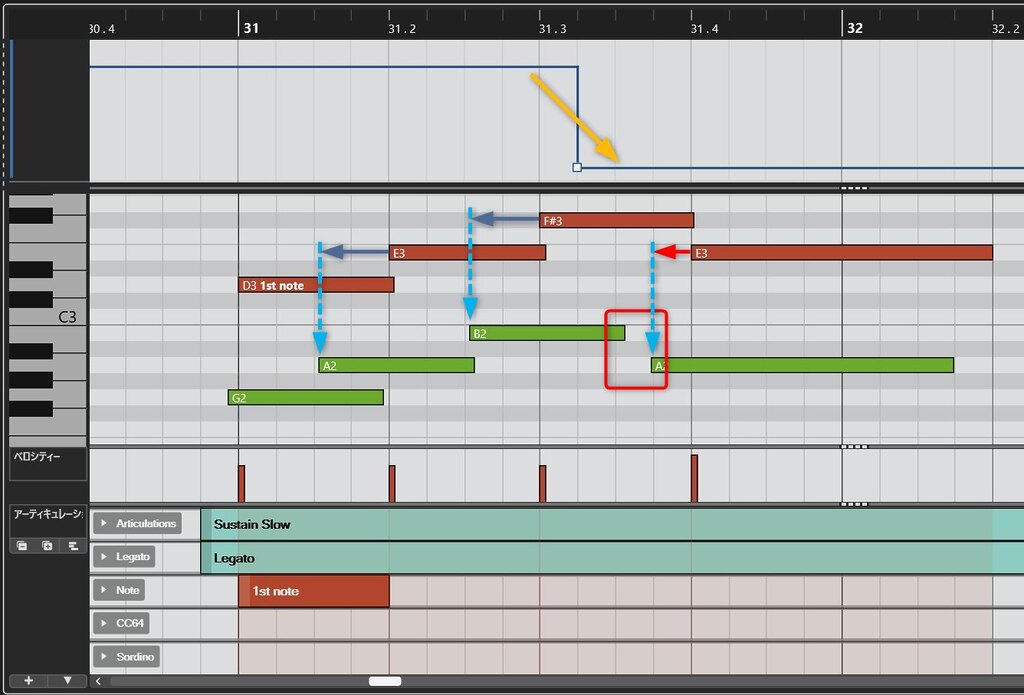
The line at the top of the image represents tempo changes. The red notes are the input MIDI data, and the green notes below represent the MIDI after delay compensation.
The arrows on each note show the delay compensation status. You can see that the attack timing is shifted by a fixed absolute time according to the tempo at that moment.
In the final note, the tempo drops significantly, so the same millisecond delay results in a smaller visual shift on the grid. This creates a gap before the attack of the last note.
This problem can also be solved using the Sustain Pedal (CC64). Simply place “cc 64” and “OFF” commands to bridge the gap. For minor gaps (slow tempo changes), manually editing the Note-Off timing is also a valid approach.
[Note 1] Regarding the “Reset” Function
Cubase 15 introduces a “Reset” feature for Expression Maps, which could make the controller lane even cleaner. However, I decided not to implement it this time due to a functional drawback.
When using the Reset function to manage Sustain Pedal data, it plays back fine, but a problem occurs during MIDI editing where “auditioned notes (rehearsal sounds) do not stop.” This is likely because the MIDI event chasing/consistency functions do not yet work perfectly with the Reset feature.
I have left the underlying settings (Note-Off information in output mapping) for the Reset function in place for when this issue is resolved in the future.
[Note 2] “Can’t I just use the Sustain Pedal all the time?”
One could argue that simply keeping the Sustain Pedal on throughout a legato phrase is the easiest method. However, if you do this, you must accept that the Sustain Pedal will always be “on” during editing.
This means that auditioned notes in the Key Editor will essentially never stop ringing. Whether or not to use the Sustain Pedal constantly depends on how you weigh this trade-off.
This concludes the explanation of the CSS Expression Map.
[Reference] CSS Characteristics: Unique Challenges and History
The legato in CSS captures real transitions (the sound between pitches). To achieve this realism, the transitions were recorded to start significantly before the actual attack timing.
As a result, the sound is produced much later than the MIDI note or real-time performance attack.
The developer has released the delay times for each legato speed, allowing users to play at the “correct timing” by shifting notes forward in the Key Editor. However, this is extremely labor-intensive, requiring users to manually move notes or create dedicated Logical Presets and macros.
Furthermore, real-time performance requires considerable practice; without using the “Low Latency Legato” mode (which shortens transitions), performing live is very difficult.
Previous Solutions for CSS
Despite its quirks, the community has developed several solutions for this legendary library.
Since CSS runs on Native Instruments’ “Kontakt” sampler, scripts were developed to compensate for delay dynamically. Two famous scripts include:


Furthermore, some users created dedicated “Delay Compensation VST3 Plugins” that wrap Kontakt:


While these work well when compatibility with Cubase/Kontakt versions is high, they often carry risks of instability under heavy loads or breaking after Kontakt updates.
Given this history, the addition of native delay compensation within Cubase itself is a very welcome development.
Closing Thoughts
I hope this walkthrough and the released Expression Map for Cinematic Studio Strings are helpful.
With the overhaul of Expression Maps in Cubase 15, we can finally handle CSS comfortably within a native DAW environment. I would be delighted if this file helps even one more CSS user.
I have also seen mentions on the official forums that further updates to Expression Maps are on the development roadmap, so I look forward to future enhancements.